

Google Meet for Education has become a core part of modern teaching and learning, whether you’re running live online lessons, supporting hybrid classrooms, or hosting revision sessions after school.
Since 2020, schools worldwide have quickly adopted virtual learning tools. According to UNESCO, over 1.6 billion learners were affected by school closures at the peak of the pandemic, fast-tracking the need for secure and scalable video conferencing platforms. Today, many schools continue using Google Meet not just as a backup plan, but as a permanent part of their digital learning environment.
This guide is designed to help educators feel confident using Google Meet for Education, not just technically, but strategically. We’ll cover:
- How it works within Google Workspace for Education
- Classroom setup basics
- Best Meet features for engagement
- Safeguarding and security controls
- Accessibility and inclusive teaching
- Practical tips from real classroom use
By the end, you should feel equipped to use Google Meet as a persistent teaching tool, not just a video call platform.
What Is Google Meet and How Is It Used in Education?
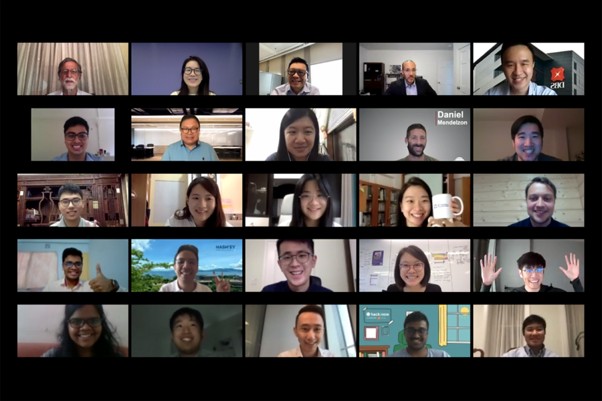
Google Meet is Google’s secure video conferencing platform and part of Google Workspace for Education. It allows students and teachers to connect in real time through structured video calls, chat, screen sharing, and collaboration tools.
Typical use cases in schools and universities:
- Live online lessons during remote learning
- Hybrid classrooms, where some learners join virtually
- Guest lectures from external experts
- Tutorials, revision sessions, and office hours
- Pastoral check-ins and school community meetings
Because Meet integrates seamlessly with Google Classroom, Google Calendar, Google Drive, and tools like Google Docs and Sheets, it supports a connected learning environment. Teachers can schedule sessions in Calendar, attach resources from Drive, and post links directly when using Google Classroom.
Google Meet supports meetings of up to 100 participants on many education plans, with higher limits available on upgraded editions. This makes it suitable for standard class sizes as well as bigger year-group assemblies.
For schools looking at wider digital transformation, Meet works alongside broader cloud solutions that centralise collaboration, file management, and communication.
Getting Started with Google Meet for Education: Basics for the Classroom
If you’re new to Google Meet for Education, start with these foundational steps (based on official Google Admin guidance):
1. Check System Requirements
Students and teachers need:
- A device (laptop, Chromebook, tablet, or smartphone)
- A stable internet connection
- A Google account issued by the school
- Updated browser (Chrome recommended)
2. Ensure Meet Is Turned On
Your IT administrator must:
- Enable Google Meet in the Admin Console
- Turn on the appropriate Meet features
- Configure participant and recording permissions
If you’re unsure, seek Google for Education support from your IT partner.
3. Schedule Lessons Safely
Teachers can:
- Generate a Meet link inside Google Classroom
- Schedule via Google Calendar
- Reuse a permanent Classroom Meet link for recurring lessons
Best practice: Avoid sharing meeting links publicly. Post them only inside secure classroom platforms.
4. Set Clear Expectations and Rules
Before your first lesson, establish:
- Camera and microphone rules
- Appropriate chat behaviour
- Dress code and background guidelines
- Consequences for misuse
For example, one secondary school uses a “mute on entry” rule and requires students to raise a digital hand before speaking. Clear norms maintain focus and protect your school community.
Google Meet for Education: Best Features for Schools and Universities
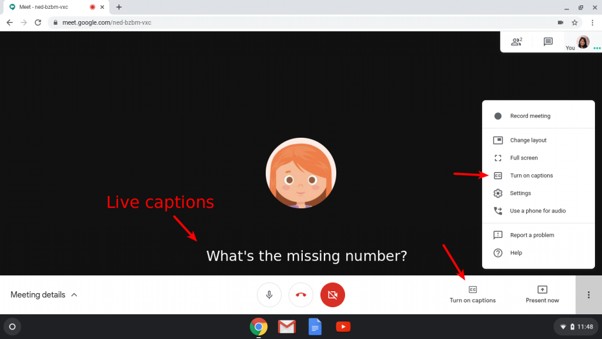

What makes Google Meet for Education especially effective isn’t just video calls, it’s the purpose-built Meet features that support teaching and learning. Below are the most important Google Meet features and capabilites for schools:
1. Live Captions
Automatic captions improve accessibility for:
- Deaf or hard-of-hearing students
- EAL learners
- Students in noisy environments
2. Screen Sharing
Teachers can present:
- Slides
- Google Docs or Sheets
- Educational videos
- Interactive quizzes
This keeps teaching structured and visually engaging.
3. In-Meeting Chat
Students can:
- Ask questions discreetly
- Share links to work
- Collaborate during activities
Chat moderation tools allow teachers to manage participation.
4. Breakout Rooms
For group work and peer collaboration, breakout rooms recreate classroom table discussions in a virtual learning setting.
5. Recorded Meetings
On eligible plans, lessons can be recorded for:
- Revision
- Absent students
- Accessibility adjustments
Schools must ensure safeguarding policies are followed when enabling recordings.
Meet uses encryption in transit and secure-by-design infrastructure, making it suitable for educational use when configured properly.
Keeping Lessons Secure and Safeguarded on Google Meet
Security and safeguarding are non-negotiable in education.
Best practices include:
- Restricting external participants
- Using waiting rooms
- Controlling screen sharing permissions
- Disabling student’s ability to remove others
- Monitoring chat behaviour
Teachers should always end the meeting for all participants rather than purely leaving.
For safeguarding alignment, Google Meet supports admin-level controls so that only authorised users within your domain can join by default.
Schools implementing Google Meet for Education as part of a wider digital transformation often combine it with structured IT support for educational institutions to ensure compliance, filtering, and monitoring are properly configured.
Inclusivity and Accessibility in Online Teaching with Google Meet

A strong learning environment is inclusive by design.
Google Meet supports accessibility through:
- Live captions
- Keyboard navigation
- Screen reader compatibility
- Adjustable layouts
- Recorded meetings for revision
Teachers can also:
- Share lesson materials in advance via Google Docs
- Provide transcripts
- Use visual aids consistently
- Build in pauses for processing time
When schools consistently use Google Workspace in education, they create continuity between in-person and virtual learning, making transitions smoother for students and teachers alike.
Final Thoughts: Making Google Meet Work for Your Students
Google Meet for Education isn’t just about video conferencing; it’s about intentional teaching in a digital space.
Used well, it can:
- Strengthen school community connections
- Extend learning beyond the classroom
- Support flexible revision sessions
- Increase accessibility
- Enable real-time collaboration
The key is not conquering every feature at once. Start small. Establish routines. Build confidence.
With the right structure, safeguarding policies, and training, Google Meet becomes a powerful extension of your classroom: not a replacement for it.
If your institution is exploring wider digital transformation or needs structured guidance around Google for Education, consider expert-led implementation support to ensure your tools align with your teaching strategy.
Get more out of Google Workspace for Education.
Get in touch with our expert teams for a free consultation.
FAQ
How much does Google Meet cost?
Google Meet is included within Google Workspace for Education plans. Pricing depends on your edition (Fundamentals, Standard, Plus). Schools can view official pricing here.
What are the advantages and disadvantages of Google Meet for students?
Advantages:
- Real-time collaboration
- Accessibility tools
- Easy integration with Google Classroom
- Secure infrastructure
Disadvantages:
- Requires a stable internet
- Screen fatigue
- Digital distraction risks
Is Google Meet free for more than 60 minutes?
For personal Google accounts, limits may apply. Education accounts under Google Workspace for Education typically allow extended meeting durations depending on the plan.
How many participants are in Google Meet for Education?
Standard education plans support up to 100 participants, with higher tiers allowing more.
How to use the same Google Meet link for teaching?
Generate a recurring link inside Google Classroom. This creates a consistent meeting space tied to your class, reducing confusion and improving safeguarding control.